
The Short Answer
The Twindo app will show measurements in imperial units by default, but this can be changed in-app or through your Twindo account portal. Likewise, the default units for Twindo files (.rvt, .skp, .plan, .pls, .vwx, .kit, .dwg, or .dae) will be delivered in imperial, however, changing the units in-app or through your Account Portal will change the change the units your CAD files are delivered in. This will only change the units for future orders, so if you have an older order, or an order that is in progress, please contact support@twindo.com and we'll be happy to change those units for you.
If you are importing the .obj file of the scan into another 3D program, the default scale is meters. However, different 3D programs have different conventions for how they import .obj files, so you may need to adjust the import settings and/or contact the support team for that particular software to ensure scale is maintained.
The Long Answer
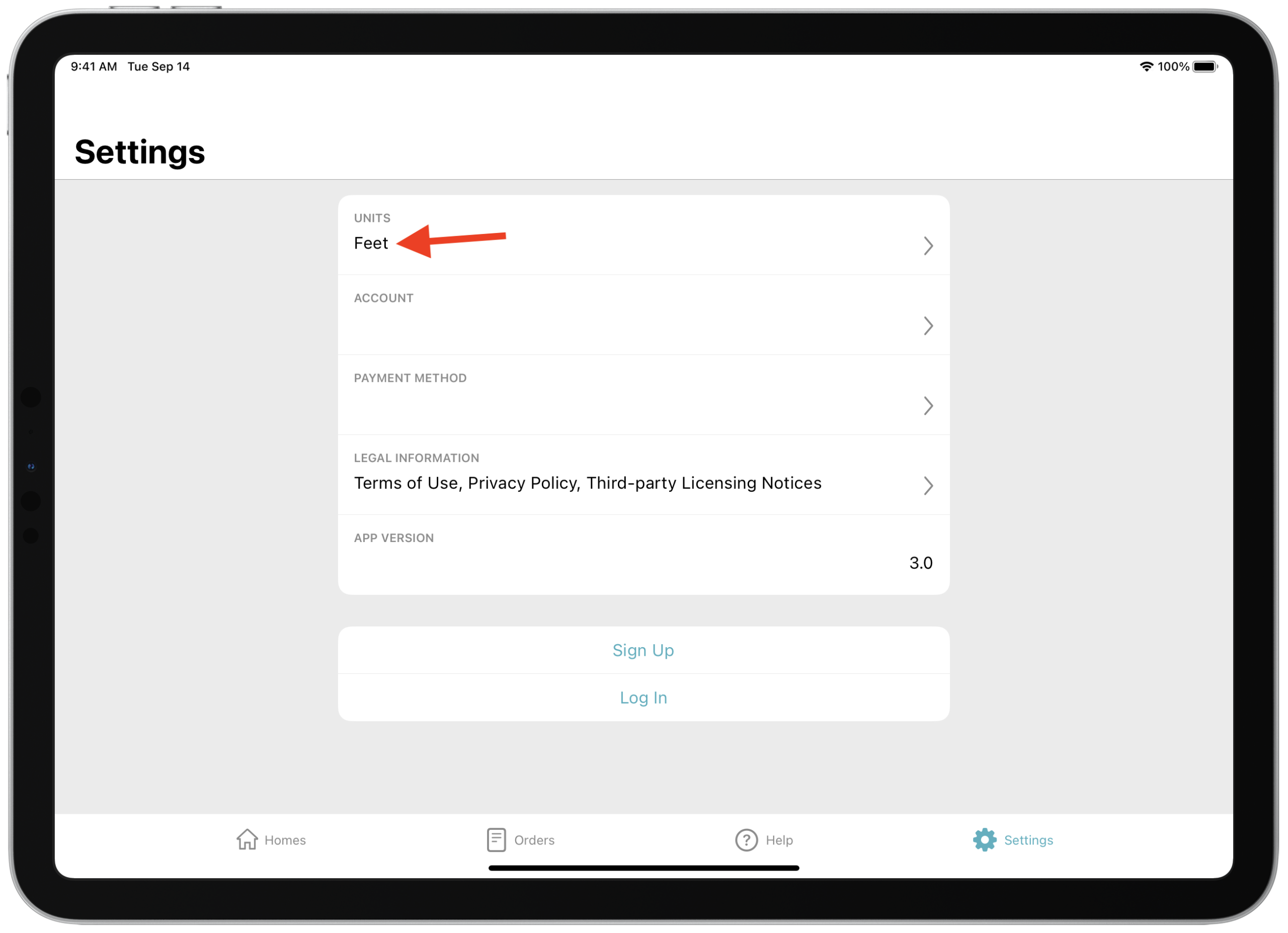
Twindo will show measurements in imperial (feet and inches) units by default, but the in-app measurements can be easily converted to metric (meters and centimeters). Likewise, changing the units in-app or through your Twindo Account Portal will change your default CAD file units.
From iPad or iPhone
From Account Portal
- Log into your Twindo Account Portal at https://twindo.com
- Click "Settings" on your portal dashboard
- Click "Units" and select your preferred unit
If you use our Scan To CAD service, AutoCAD may require you to re-scale the drawing based on your desired unit of measurement.