
The Viewer is an easy way to view, measure, and share your scans or CAD models..
With the Viewer, you can:
- Virtually revisit the space
- Measure the scan or CAD file directly in your browser
- View notes and measurements created in-app
- Share with collaborators or clients
- Embed scans and simplified CAD models on your website.
You can access the viewer directly from the app or Web.
Accessing the Viewer
You can access the Viewer on device by tapping a scan in the App or by clicking on a scan’s Viewer link on Twindo Web.
Share
You can share the Viewer with customers, contractors, subcontractors, owners, or anyone else you choose. You can share this in two ways.
- Invite to Capture (link). Collaborators will be able to view and add scans, photos, field notes, and PDFs. They will also be able to download any assets tied to the project, including the converted model. However, they will not be able to view order details or pricing for the project.
- Share individual Viewer links. In their web browser, users can view your scan and as-built, see notes, and take measurements.
Two important notes:
1. If the scan hasn’t been uploaded yet, you’ll need to upload before sharing.
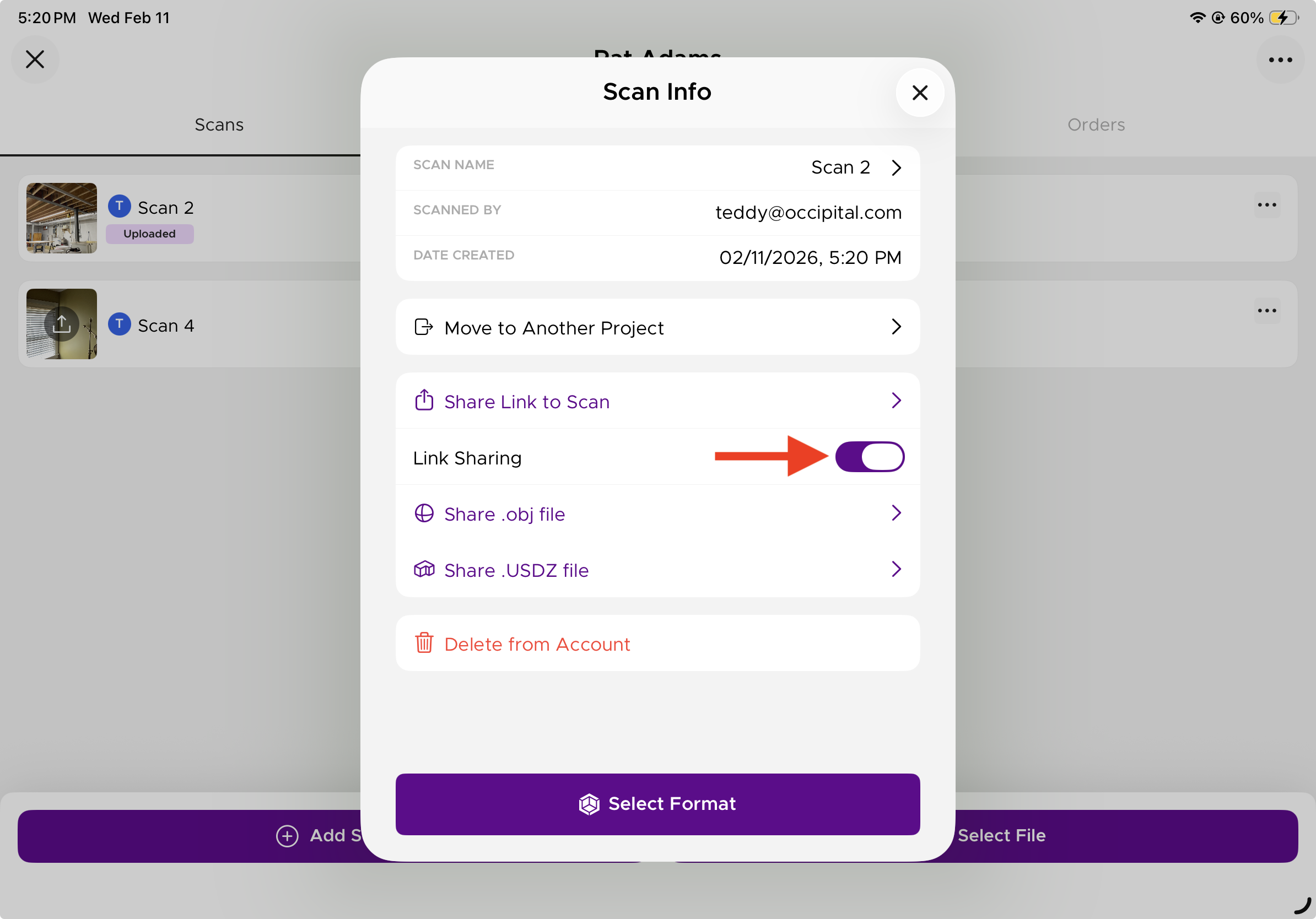
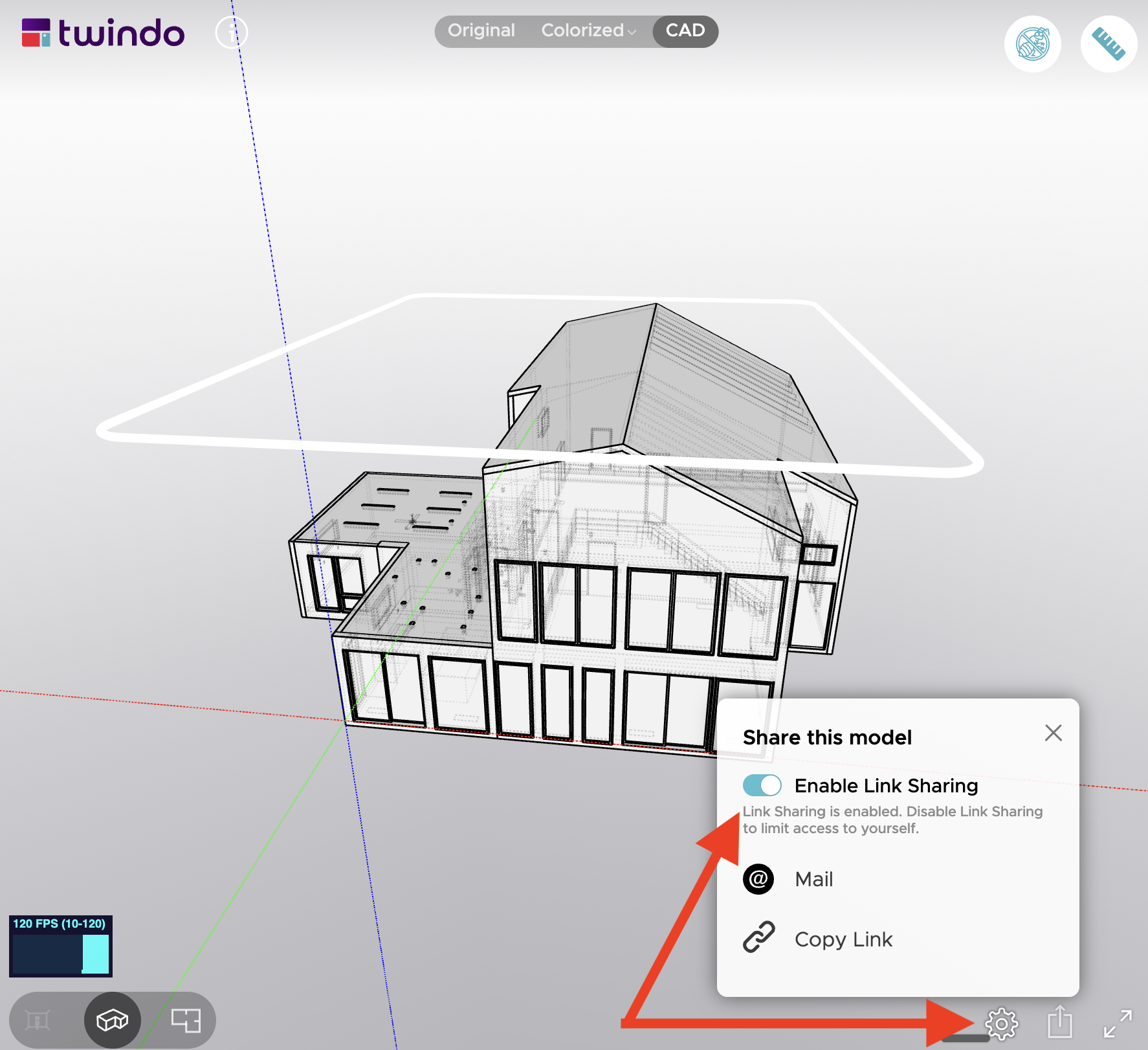
2. Sharing is off by default when just sharing individual Viewer links. Once Link Sharing is enabled, the Viewer link will be accessible to users. If you would like your scan to remain private, you can leave or toggle Link Sharing OFF. When this setting is OFF, the link to the scan is only accessible to you when you are logged in to your account.
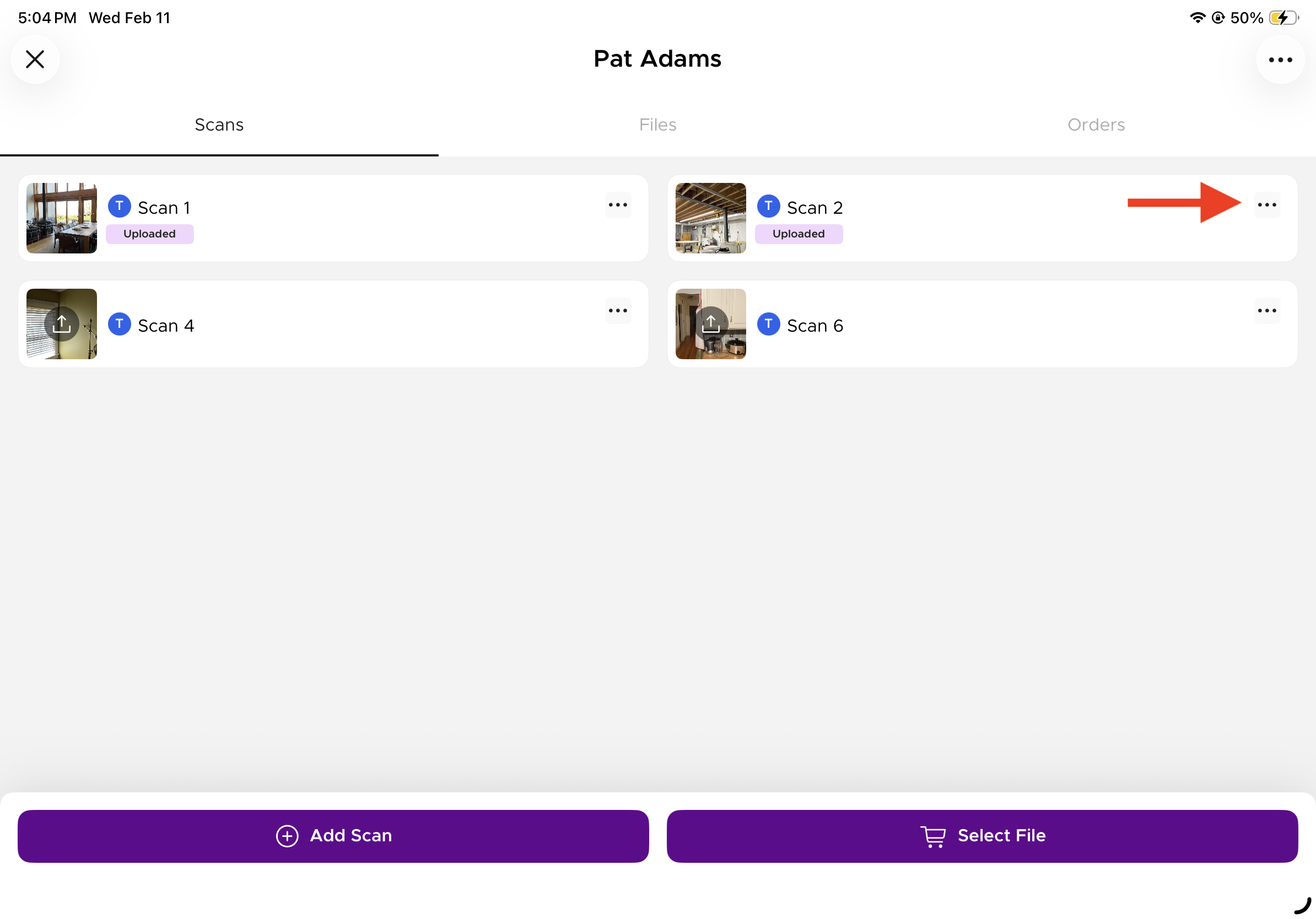
To share: tap the three dots on the top right of the scan’s thumbnail to get to the scan information.
Clipping Tool
To make it easier to view CAD files in the Twindo Viewer. We’ve included a clipping tool that snaps to important CAD elements (ceilings, windows, doors, etc) to make viewing different floors and elements simple. Just click and drag.
You can toggle the clipping tool on and off in the settings menu (gear icon) at the bottom right.
Measure
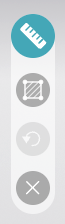
With the measuring tool (top right corner), click the first point then move your cursor to the second point and get an instant measurement.
- Zoom in by clicking and holding.
- Hold “Shift” key to lock measurement to X-axis, Y-axis, or Z-axis.
- Since measuring precise points on the 3D mesh can sometimes be difficult, we try to help speed up certain measurements. If you touch two opposing walls, the measure tool will “snap” to the straight, perpendicular distance between those two walls even if you didn’t touch the exact right points. If you touch anywhere on the floor and then anywhere on the ceiling, the same thing will happen. For more complicated measurements, you can always use the normal point to point measurement feature. You can turn off “snapping” by clicking the “Planar” toggle.
- The second button under the ruler (the square) allows you to trace a space for a quick area calculation.
Link Sharing
You can change the webviewer link-sharing settings using the Twindo app or your Twindo.com account portal. This allows you to share links with your clients and colleagues and to enable/disable access for anyone with the link as needed.
To allow access to your viewer links from the Twindo App:
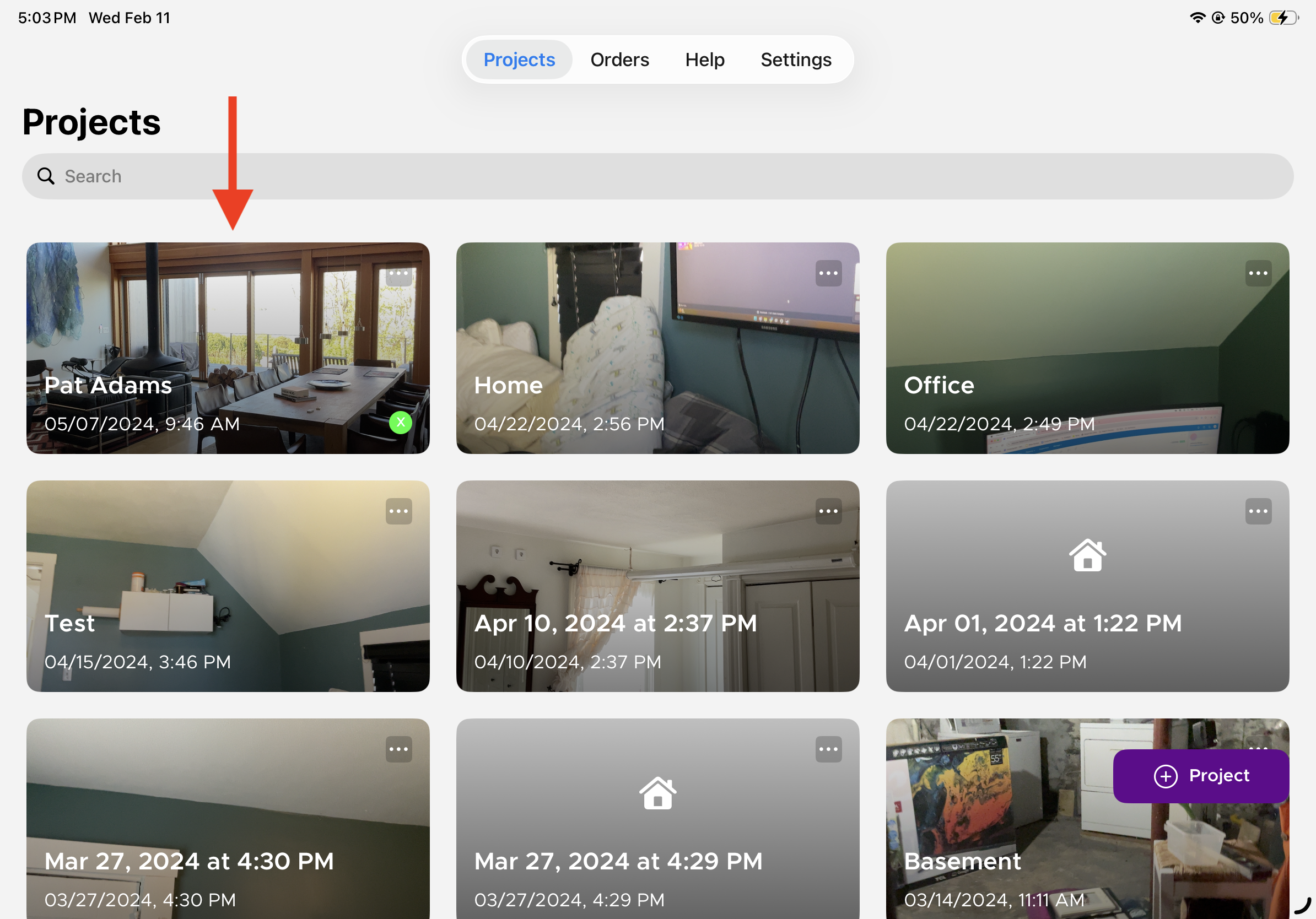
- Open the Project containing the scan you wish to share (in this example, Pat Adams)
- Tap “…” to open Scan Info for the scan you wish to share
- Toggle “link sharing” to the purple on-position
- Repeat this process for any additional scans, and then share the links with your colleagues!
To allow link sharing using your Twindo.com web account:
- Log in to your web account at app.twindo.com/login, this will bring you to your Projects Menu
- Select the Project containing the scan you wish to share (in this example, Pat Adams)
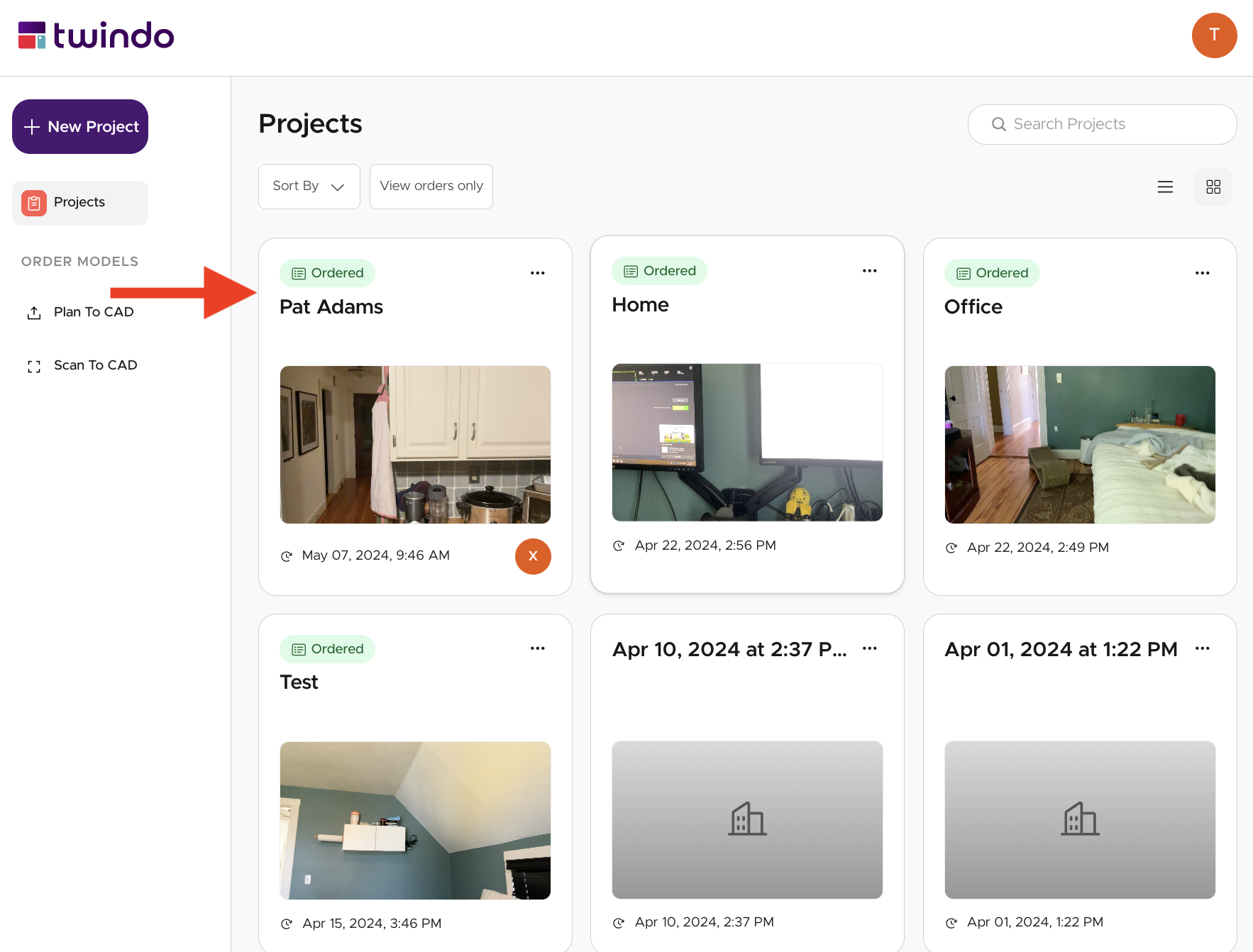
- Click on the “Open Viewer” button to open the scan in the webviewer
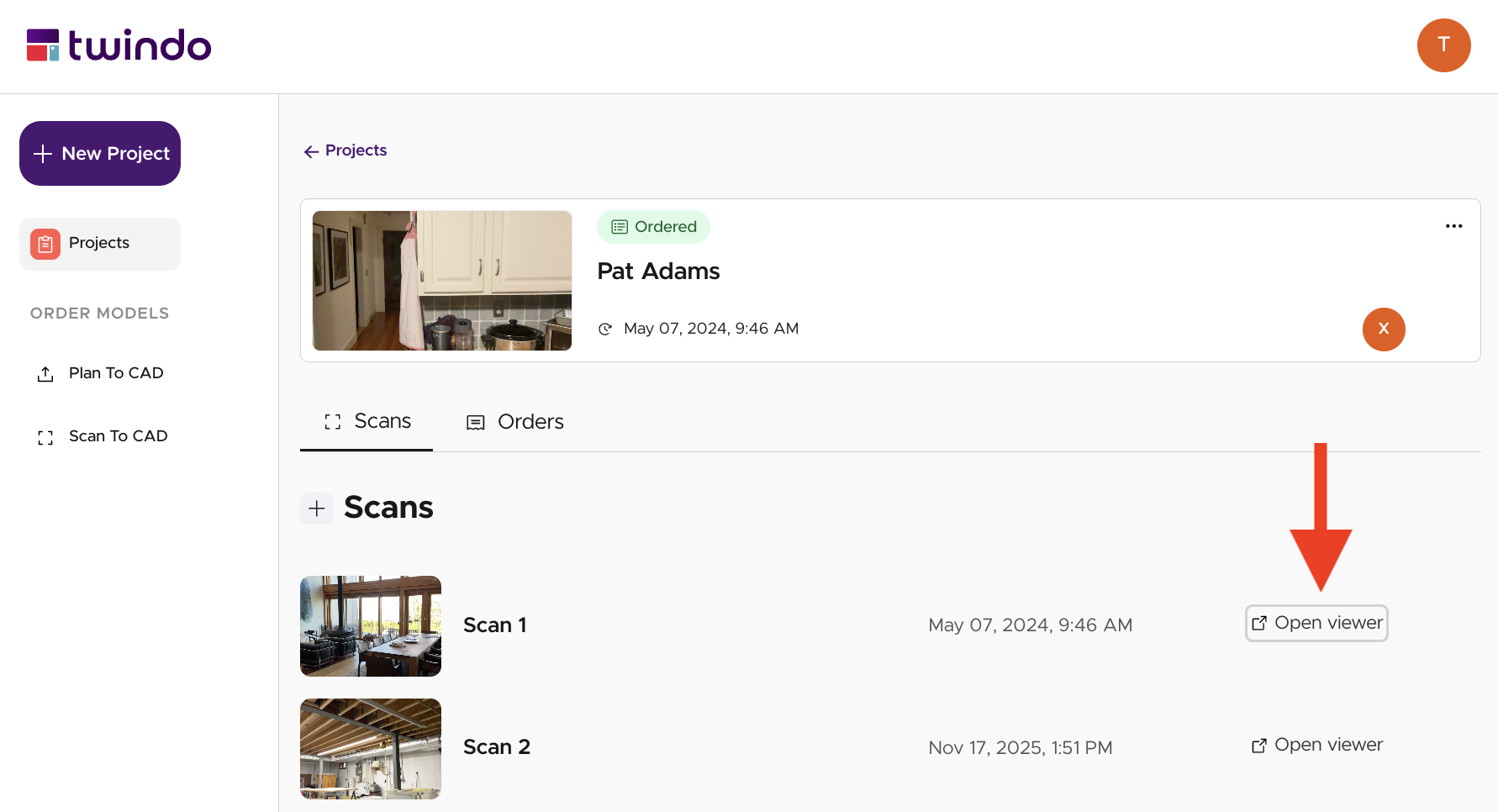
- Click the Sharing icon in the bottom right corner of the webviewer, then toggle the Enable Link Sharing button to the blue on-position
- Repeat this process for any additional scans, and then share the links with your colleagues!