
A Twindo account gives professionals and their teams a fast, accurate way to understand the spaces they design, build, and manage, without extra site visits or second-guessing.
With a simple scan or upload, any space becomes structured, accurate, design-ready data in the formats you need: a digital twin that captures existing building conditions and lets your whole team understand the space like they’re standing inside it.
Learn more about setting up and using your account below:
Creating an Account & Logging In
Order History & Downloading Invoices
Contact and Payment Information
Creating an account & Logging In
To create an account at Twindo.com:
- Open https://app.twindo.com/signup on your web browser or visit Twindo.com and click “Get Started” in the top right corner.
- Enter your work email and an 8 character password and then click “Create Account.” Please take note of your account information so you can log in with it again.
- You’ll then need to answer a few more set up questions – this helps us customize your Twindo experience.
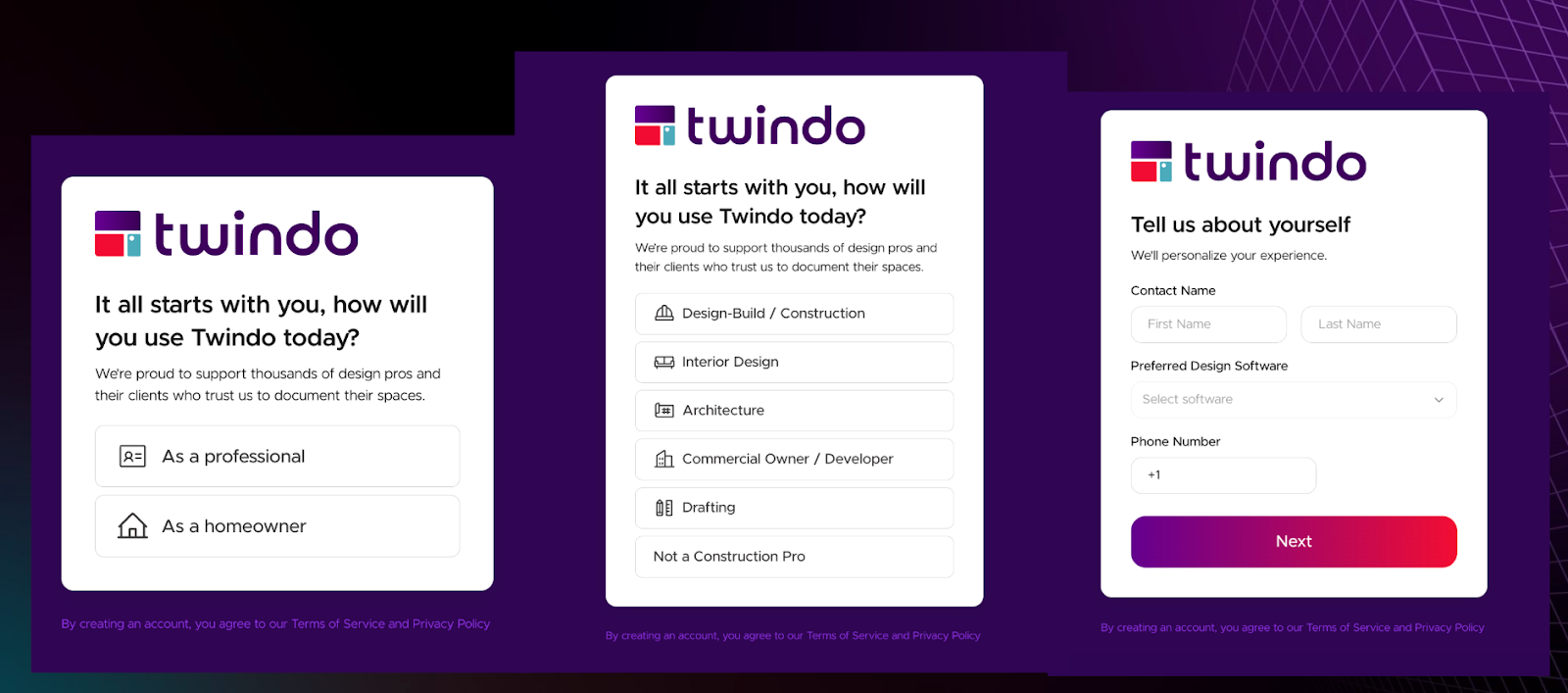
- That’s it! Your account is ready. To return to it – head to twindo.com and click “Account” in the top menu to log in. Use the email / password you chose during your initial set up – using different information won’t allow you to see your projects. NOTE: To reset your password, click "Forgot Password" and enter your account email
REMINDER
Twindo pairs simple, accessible capture with our iOS app and our best in class web experience to give you a unified workspace to view, organize, and collaborate on spatial data. In order for this to work you must log in to both our Twindo App and Twindo Web using the same account in order for the devices to properly share data.
Managing Projects
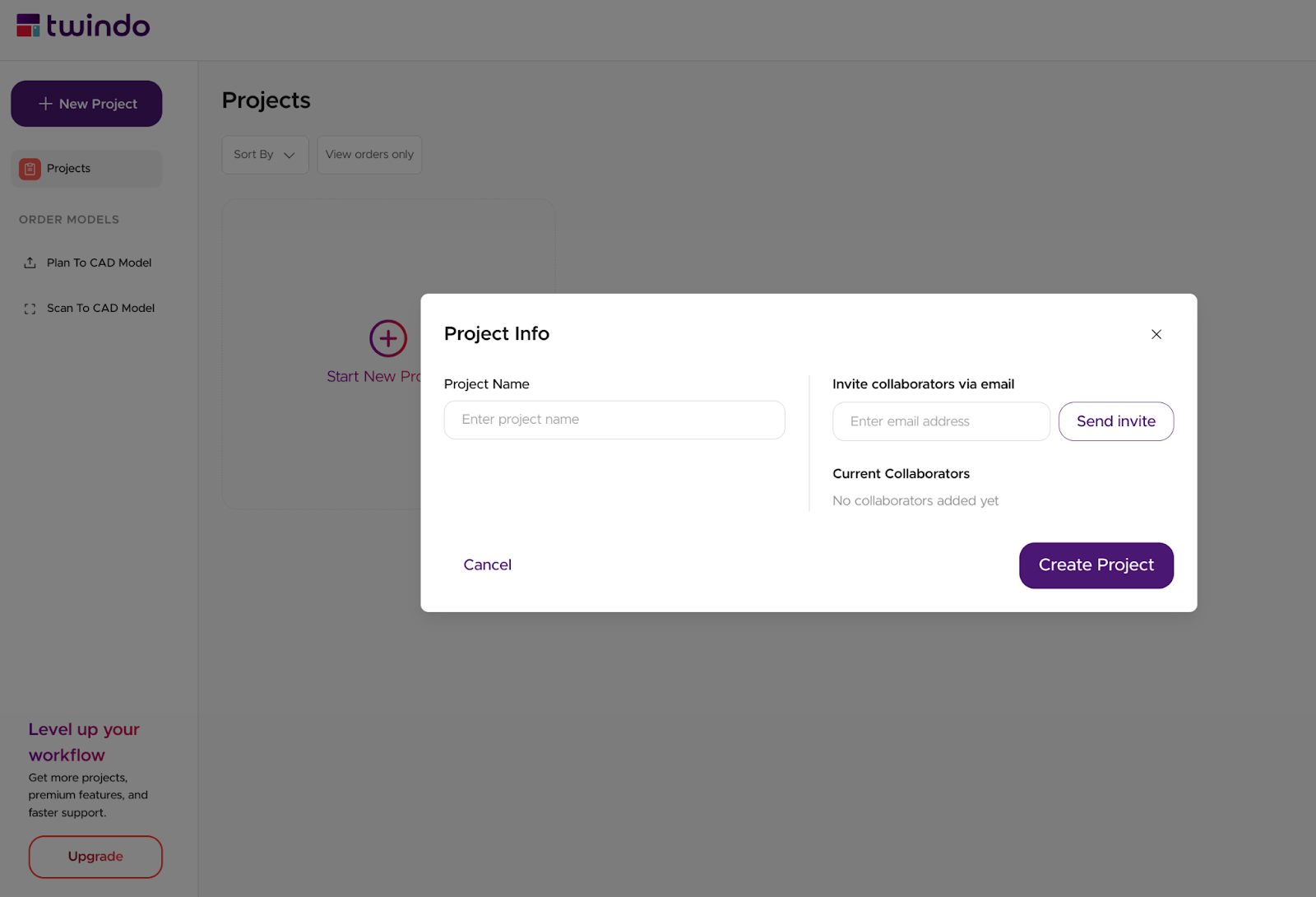
When you first log in to Twindo Web, you’ll see your Project list. Click the plus button to add a new project – just add a name. You can also use our “Invite to Capture” feature to invite collaborators to scan a space for you or work on a project with you. Simply add their email addresses to invite them. (Don’t worry – only you will see your billing information.)
This means you can have one person out scanning in the field and uploading scans, and a different person ordering them later. It also means you could scan all the rooms in a home, upload everything for safekeeping and using our 3D Web Viewer, and then selectively order the rooms you need for that project later.
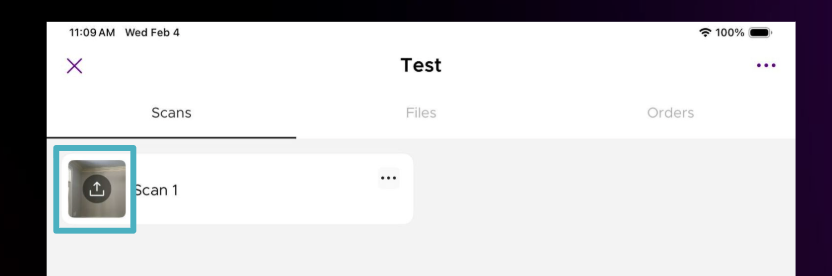
Now you’re ready to add scans to your Project. Open your Twindo App using the same log in information (or ask your collaborator to scan the space). Once you’ve captured the space – click the upload button for your scans to appear here.
Ordering Models
Your Twindo Account Portal also allows you to place orders online for uploaded scans or to upload and order from 2D plans (Plan to CAD).
Order Models from Scans
- Log in to your account
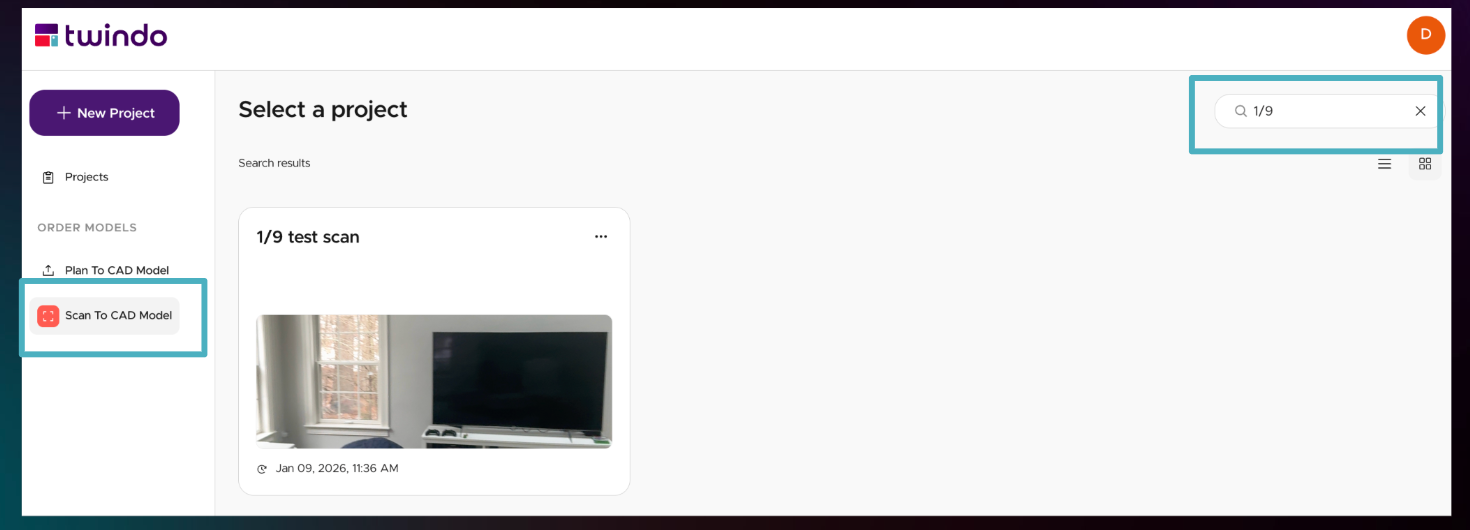
- Under “ORDER MODELS” on the left hand menu, click “Scan to CAD Model”
-
Select your project
-
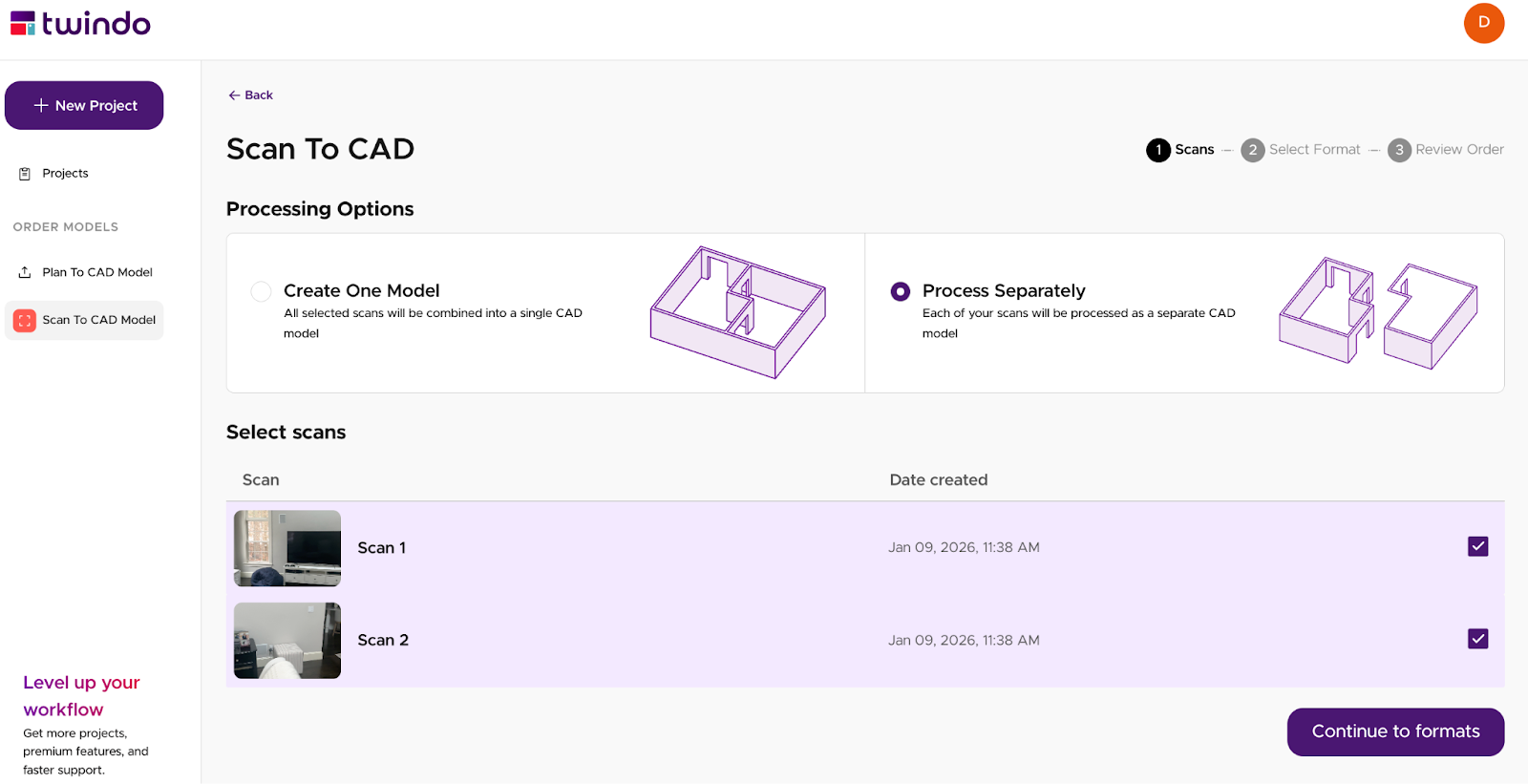
If you have more than one scan you’d like to include in your order, select each of them. Then indicate if you want them delivered in a single model or separate models. Then click “Continue to formats” in the bottom right.
Note: if you’d like the scans to be merged together into a single model select “Yes, Merge Scans” from the next dialogue box.
-
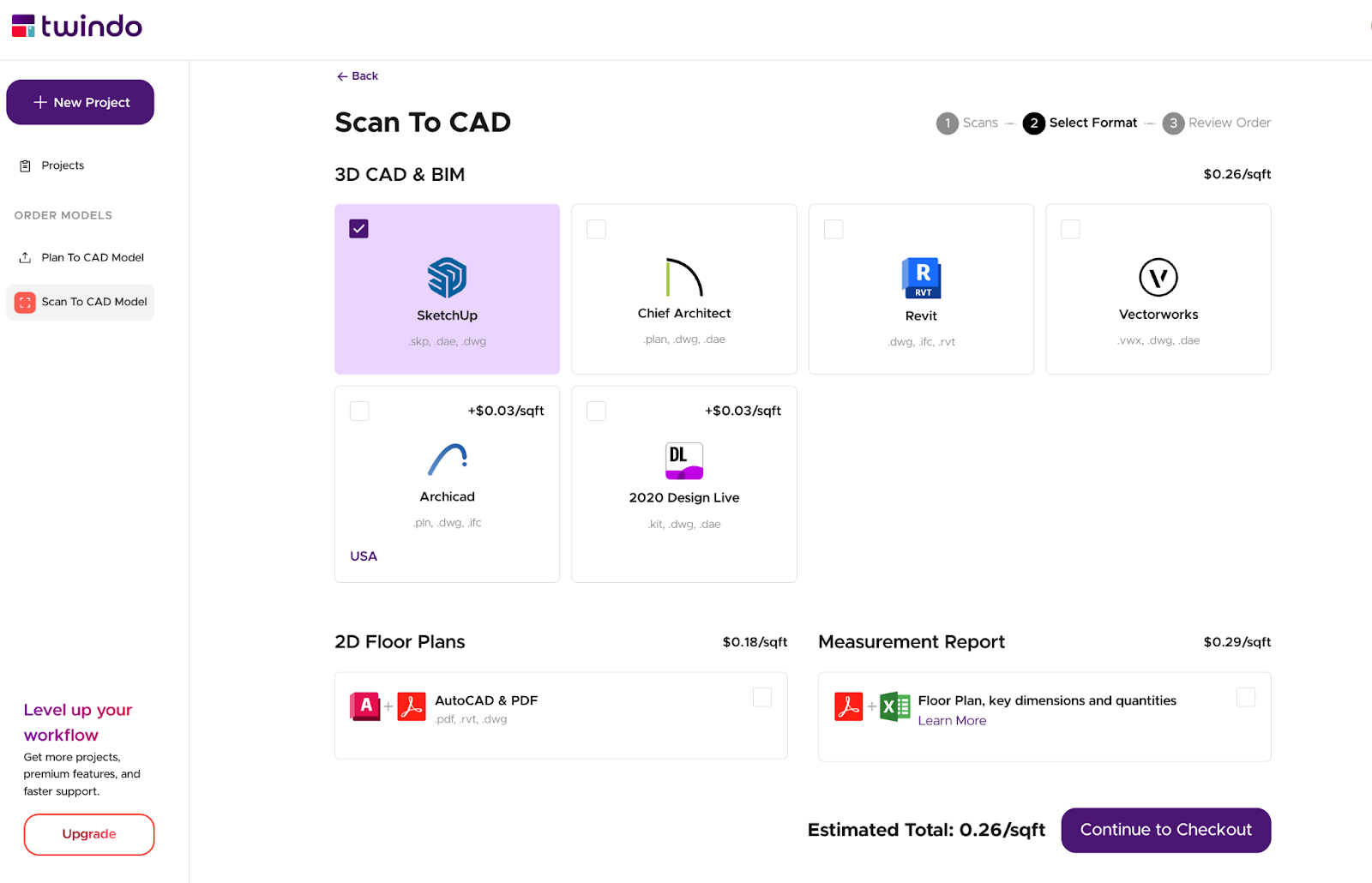
Choose the format you need and click “Continue to Checkout”
- Review order details and options
- Processing Priority: Choose Standard or Rush Delivery. Rush processing is an additional 20% which is only charged if the rush delivery time is met. More info here.
-
Estimated delivery date. Many orders can be processed within 2 days, but processing time can be affected by order size and complexity. More information here.
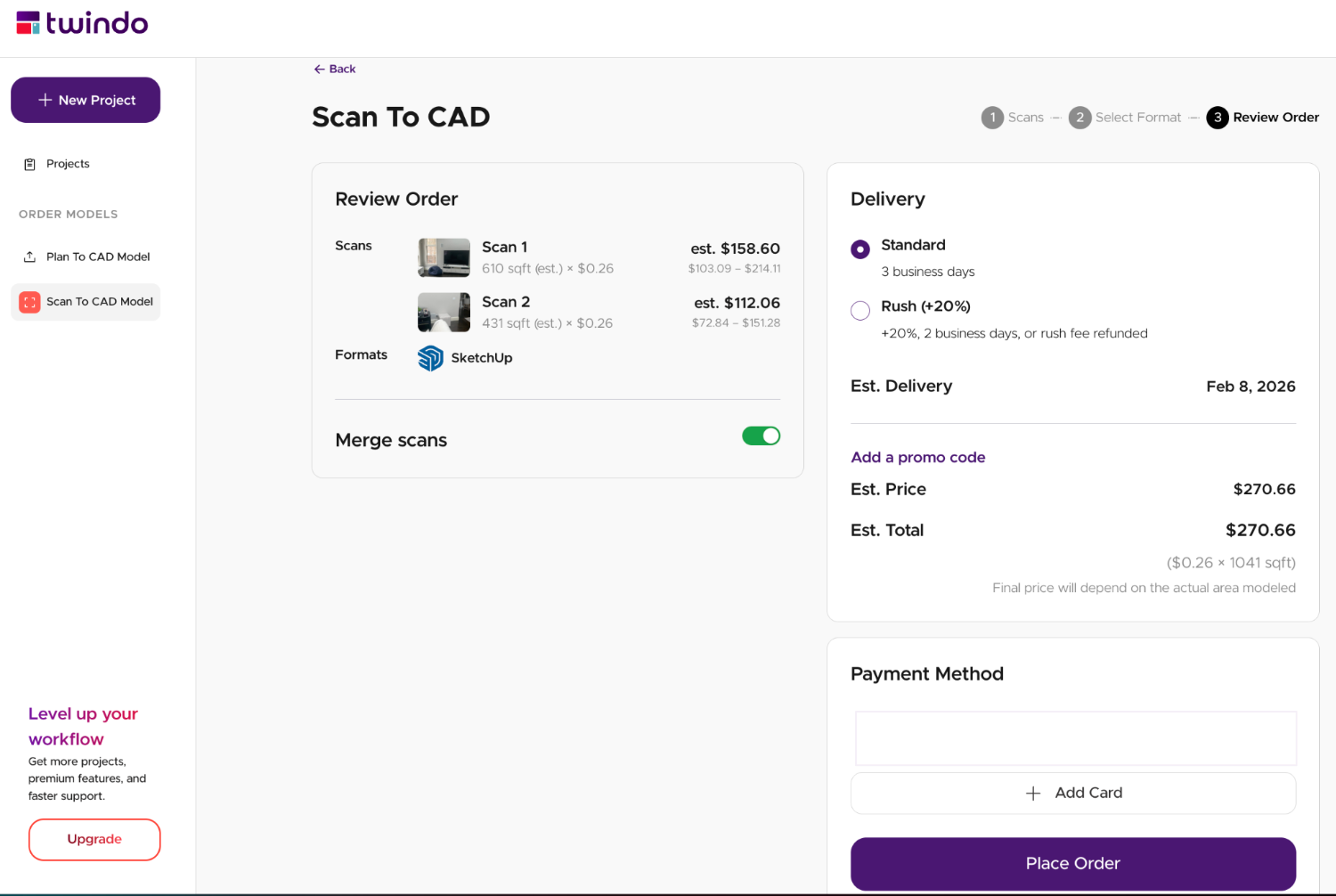
- Select/enter payment method and place order
- (Optional) On the confirmation page – you can submit any additional reference material that can be used to improve the model accuracy. We must receive these reference measurements within 8 hours of order submission for them to be used.
Plan To CAD
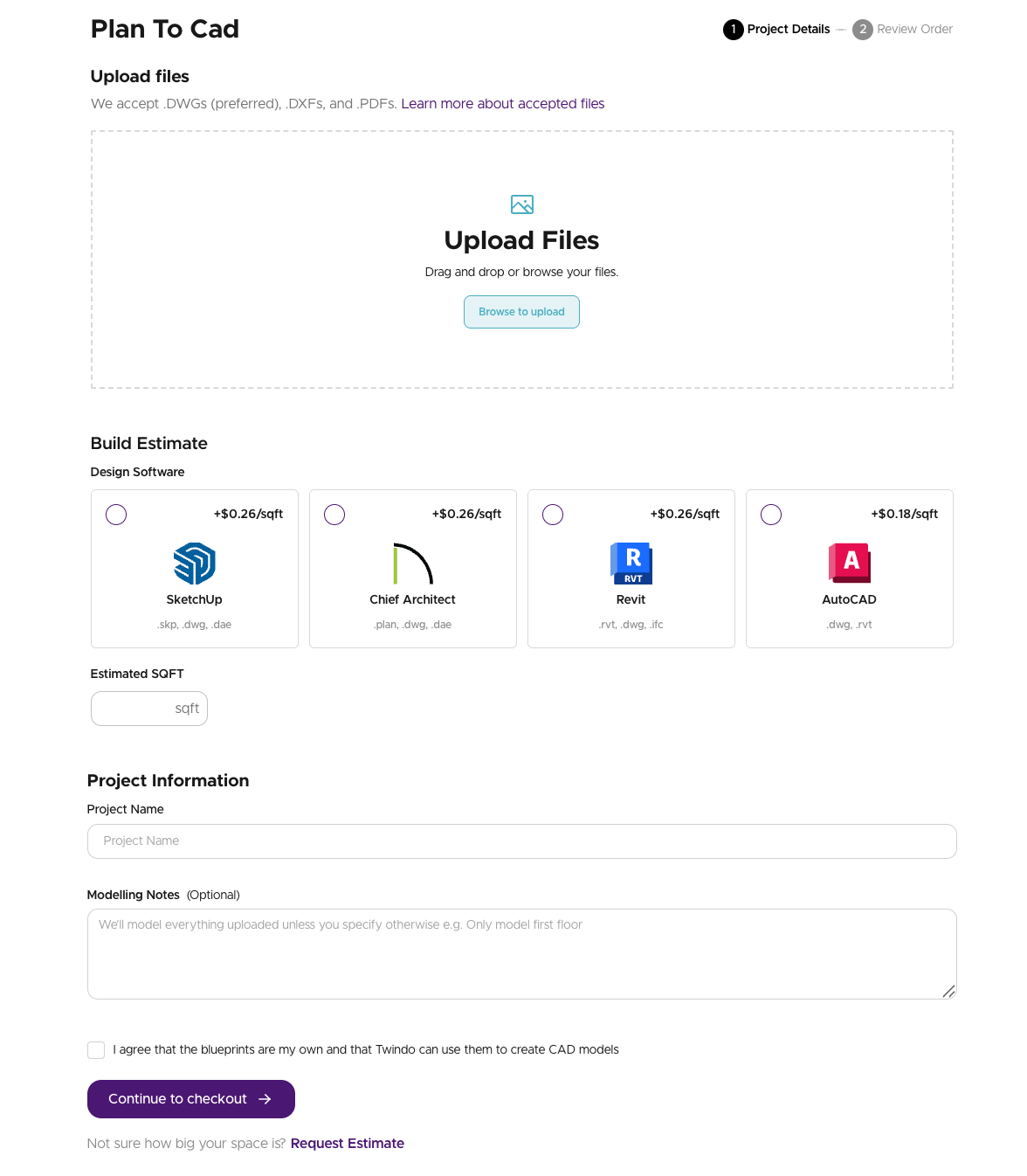
- Have plans you’d like to convert to 3D models? Click the “Plan to CAD Model” on the left side to order or request an estimate for your project.
- Upload your plans – must be a DWG, DXF, or PDF file
- Select your Format
- Add your estimated square footage
- Add your project details
- Provide rights approval on the plans you’ve uploaded.
-
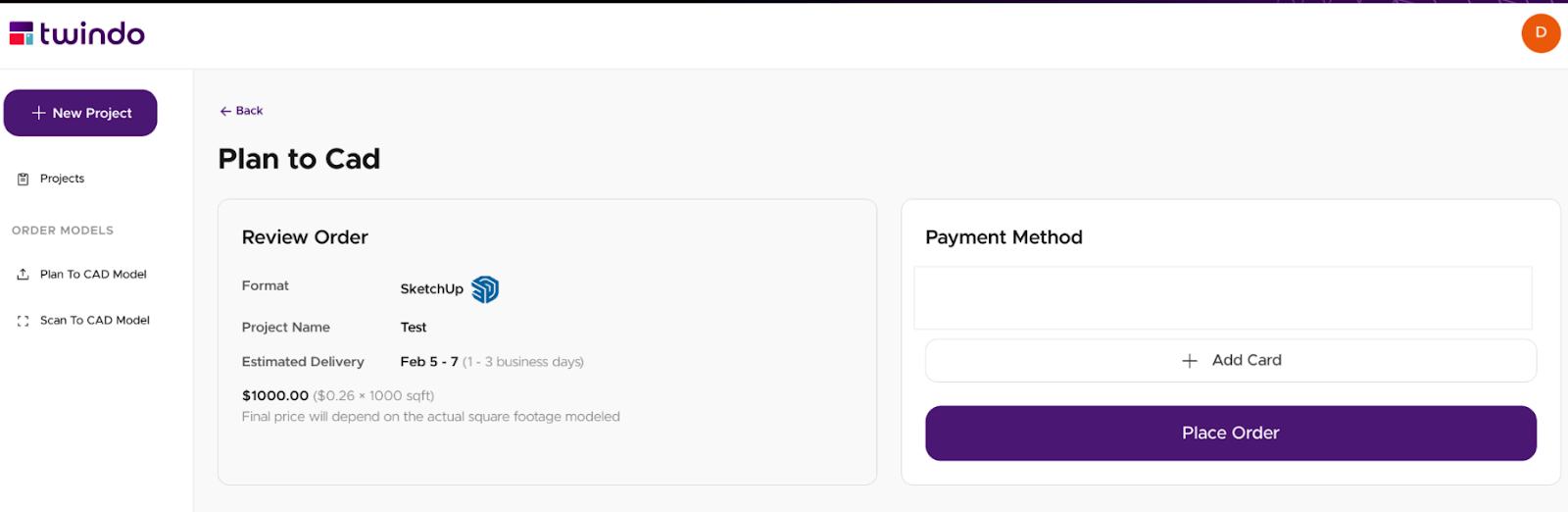
Click “Continue to Checkout” – you can also “Request an Estimate” for your order by clicking on the link below the checkout button.
-
Review your order details, add a payment method and click “Place Order”
Twindo Viewer
- Log into your account
- Your Projects will load automatically
-
Search for the order using scan name, project name, order ID, etc.
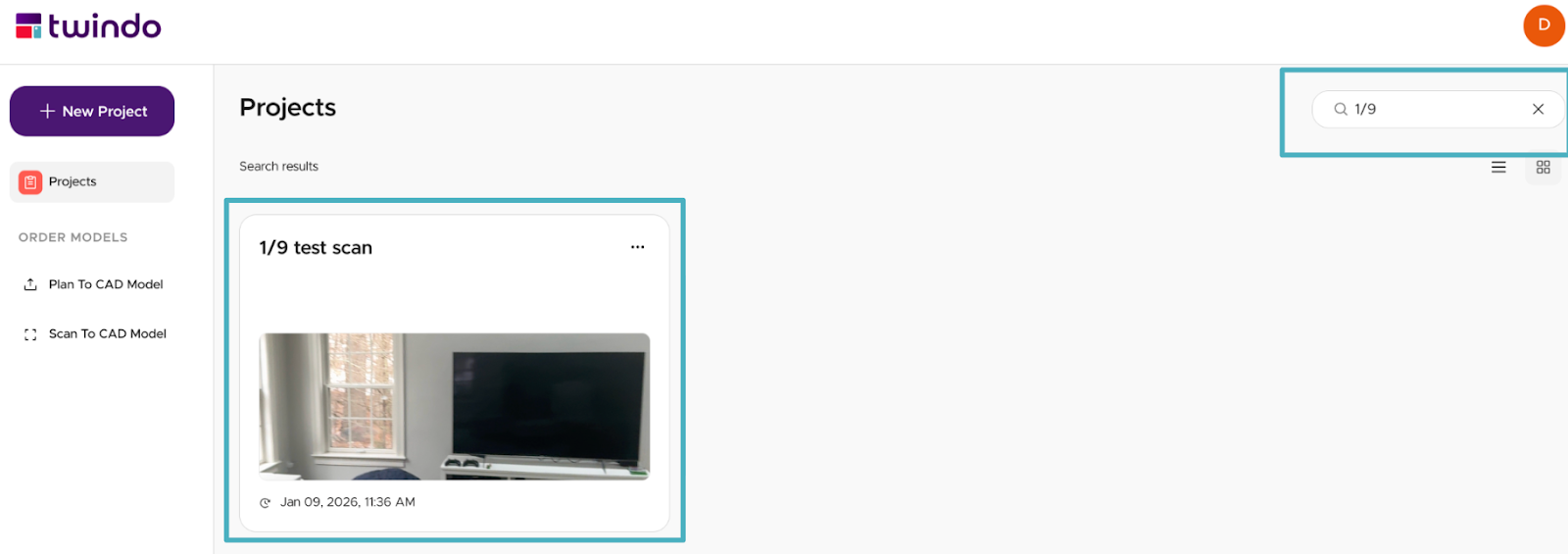
- Open the project
- On the right, click the “Open in Viewer” linkClick on the thumbnail and the Web Viewer will open! You can pull initial measurements and view the space immediately.
Learn more about using the Web Viewer here
Order History & Downloading Invoices
With a Twindo account, you can view your full order history from the Projects view. Select “View orders only” to see your purchases. When you view your orders online, you can also download any associated files by clicking into the project.
Click the “Orders” tab in the Project view to access the following information:
– Order number is in the top left
– “Get receipt” in the top right will open your invoice for downloading
– “Download Files” will create a zip file for download (it will download automatically)
– Click open the “Specifications” drop down to see other details about this order
Note: If there is any information you need about your orders, just contact us at support@twindo.com, and we’ll do what we can to help.
You can also use your order history to see estimated and completed delivery dates for orders, as well as download invoices. You can learn more about retrieving invoices here.
Contact and Payment Information
With your Twindo account, all of your payment details, contact information, membership settings, and preferences are synced across between devices and Twindo web.
To access, change, or edit these details through Twindo Web:
- Log in and click your initial in the top right
- Your Account view will open
- To change payment details click “Payment Method” (you can add multiple cards and select a default)
- To change your account details (i.e. name, account email, or delivery email, which is optional) click “Edit Profile"
- See below for changing membership or units
Now, anytime you log in to a new device, you won’t have to reenter your account details (especially emails and credit card information).
Please note that the default payment method will be the payment method for all devices and users of that account, and all payment methods will be available to all users of the account.
Units
Changing units will change the display of units across the Twindo app and your Scan To CAD results. You can learn more about changing units here.
If there is any information you need to be included or changed, just contact us at support@twindo.com, and we’ll do what we can to help.