
Ready to try it?
Start taking photos with ScanSnap.
Skip the second walkthrough and get everything you need the first time.

Turning a Twindo scan into a 3D CAD/BIM model is a critical benefit for our customers, but even with the deep spatial data that a model provides, sometimes you still need a photo. Maybe you need to capture the extent of damage on a specific wall or want to look at the wall paneling on your laptop later.
Until now, that meant a separate walkthrough, photos mixed with family photos on your personal camera roll, and more time on site.
ScanSnap is a photo capture feature built directly into the Twindo scanning experience.
While you’re scanning a space, you can tap the camera button to take photos without pausing, switching apps, or taking a second pass through the room. Your photos are saved automatically as Spatial Assets under Project Files, attached to the project where they belong.
ScanSnap is now live for all users. Here’s how to use it:
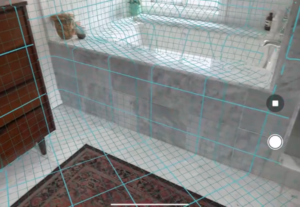
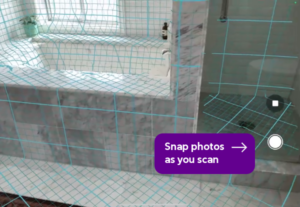
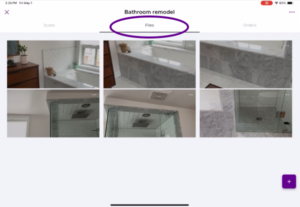
ScanSnap makes comprehensive documentation easier. Everything captured during a scan stays in one place, tied to the project it came from.
For office teams reviewing deliverables, a photo of an existing condition is often worth more than a note. For field teams, not having to do a second walkthrough just to capture photos means less time on site and fewer return visits. And no one gets back to the office only to realize they forgot to take a photo of that one awkward cornerthe tile pattern in the powder room.
Your team already relies on spatial intelligence inon every project. Twindo brings together every element of that data—3D models, floor plans, photos, and more—in one place.
3D CAD/BIM models are at the core of what we do, but your team needs the full picture—and that includes photos. As a spatial intelligence platform, we’re here to support your team and workflow at every level.
Skip the second walkthrough and get everything you need the first time.